


Legal document analysis AI can find, sum up, compare, or answer questions about legal files. A fluent answer is a useful start. Before you rely on it, you need to know which clause supports it and what nearby terms or exceptions change its meaning.
Use these tools for a first pass and to find source text. A lawyer should review any finding that affects rights, duties, dates, money, a case, or private data.

Check legal documents with cited answers
Add legal documents, ask a focused question, and inspect the cited passage.
Quick answer
Choose by task. Lexis+ Document Analysis fits lawyers who want file review inside LexisNexis.
Use LegalOn or LegalFly to review contracts against a playbook. Use LawDistrict for plain file Q&A. Use Clio Duo when the matter already lives in Clio.
Use Atlas when you already have the file. Ask a narrow question, open the citation, and read the nearby text. Keep only findings the passage supports.
Contract tools are better at redlines and playbooks. eDiscovery tools are better at review across huge sets. Atlas fits when you need to trace an answer back to one of your files.
What to look for
"Legal document analysis AI" is not one product category. The phrase covers several jobs that look similar in a search result but fail in different ways.
| Analysis job | Typical user | What the AI needs to support | Main risk to check |
|---|---|---|---|
| Legal document and clause analysis | Lawyers and legal professionals | Legal document review, issue spotting, legal research context, and source-aware recommendations | The answer may look authoritative without fitting the matter facts |
| Contract playbook review | In-house legal and contract teams | Clause extraction, risk flags, fallback positions, redlines, and reviewer workflow | The playbook may not match the team's actual negotiation standard |
| Self-serve document understanding | Founders, operators, students, and individuals | Upload, summary, key facts, clause explanations, and document Q&A | The reader may mistake explanation for legal advice |
| eDiscovery document review | Litigation and review teams | Classification, search, deduplication, relevance review, and matter-scale workflows | A general document chatbot will not replace review protocol or custody controls |
| Practice-management AI | Law firms already using a practice platform | Matter summaries, task automation, intake or casework support, and workflow context | The AI may be useful only inside that practice system |
| Cited evidence checking | Anyone reusing an answer from legal documents | Citations, passage inspection, context checks, and source-preserving notes | A citation can be related but still too weak for the claim |
Table 1: Start by naming the legal document task before comparing vendors. If the task is "find every document responsive to a discovery request," do not evaluate a PDF chatbot as if it were an eDiscovery platform.
If the task is "review vendor MSAs against our fallback positions," do not use a generic legal assistant as if it were a playbook review system. If the task is "understand what this clause says before I ask counsel," self-serve Q&A can help, but the legal-advice boundary needs to stay visible.
For source-dependent legal analysis, add one more requirement: every important answer should leave a trail back to the document.
The tool should identify the source, show the passage, preserve nearby context, and let you reject an answer when the text does not support it.
Legal document analysis AI tools compared
This table compares the tools by workflow rather than trying to rank every product on one generic score.
Start with fit before features.
| Tool | Best fit | Input and output | What to check |
|---|---|---|---|
| Atlas | Questions over your own legal files | Files in; answers with citations out | Open the cited passage. Use other tools for advice or redlines |
| Lexis+ Document Analysis | Lawyers reviewing case or deal files | LexisNexis workflow with legal insights | A lawyer still judges the result |
| LawDistrict | Plain-language file Q&A | PDF or Word in; summary and Q&A out | It does not replace legal advice |
| LegalOn | Contract playbook review | Contract in; risks and suggested edits out | Check current playbook and workflow claims |
| LegalFly Review | Contract review and redlines | Contract in; clause risks and redlines out | Check law, security, and Word support |
| Clio Duo | Firms that already use Clio | Matter data in; casework help and summaries out | Judge it inside the full Clio workflow |
Table 2: Six legal document tools by best fit, input and output, and what to check before relying on them.
The right choice depends on the consequence of a wrong answer. If the risk is low, a quick summary tool may be enough. If the answer could affect a filing, negotiation, client communication, employment decision, or regulatory position, use a review process that keeps source inspection and professional accountability in the loop.
That is the dividing line for the rest of the article.
LegalFly lists clause extraction, risk summaries, playbook redlines, issue notes, and an audit trail. LegalOn also focuses on contract playbooks. Both serve a different job from Q&A over an uploaded file.
Source notes for tool claims
- Lexis+ supports the LexisNexis claims.
- LawDistrict supports the upload, summary, clause, and Q&A claims.
- LegalOn supports the playbook, risk, and suggested edit claims.
- LegalFly supports the clause, risk, redline, and audit trail claims.
- Clio and the ABA support the need for human review.
- Sirion supports clause finding, risk checks, and summaries as common tasks.
Check a legal document answer in Atlas
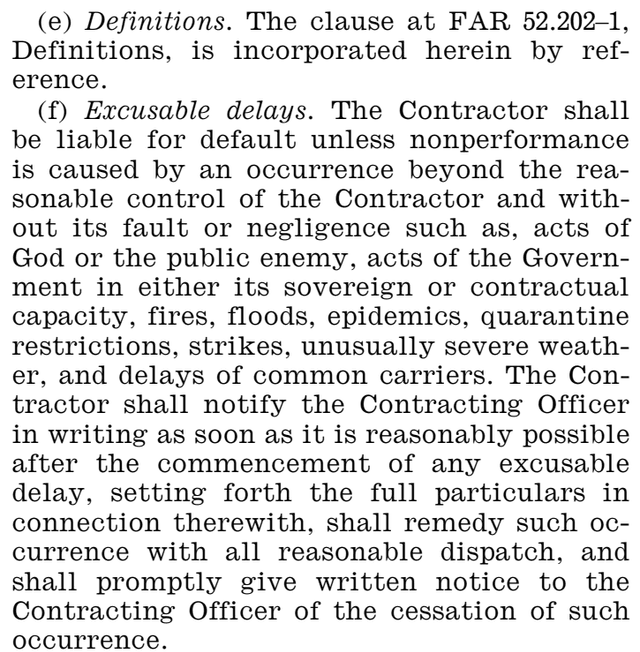
Atlas helps you check whether a file supports an AI answer. It does not give legal advice or approve a contract. Use this short review path:
- Add the legal file. A PDF works best when you can select its text and it has no password.
- Open the PDF. Check that pages load and search can find a phrase you know.
- Ask a focused grounded question. For example: "Using only this lease, what notice deadline applies before termination, and which section supports it?"
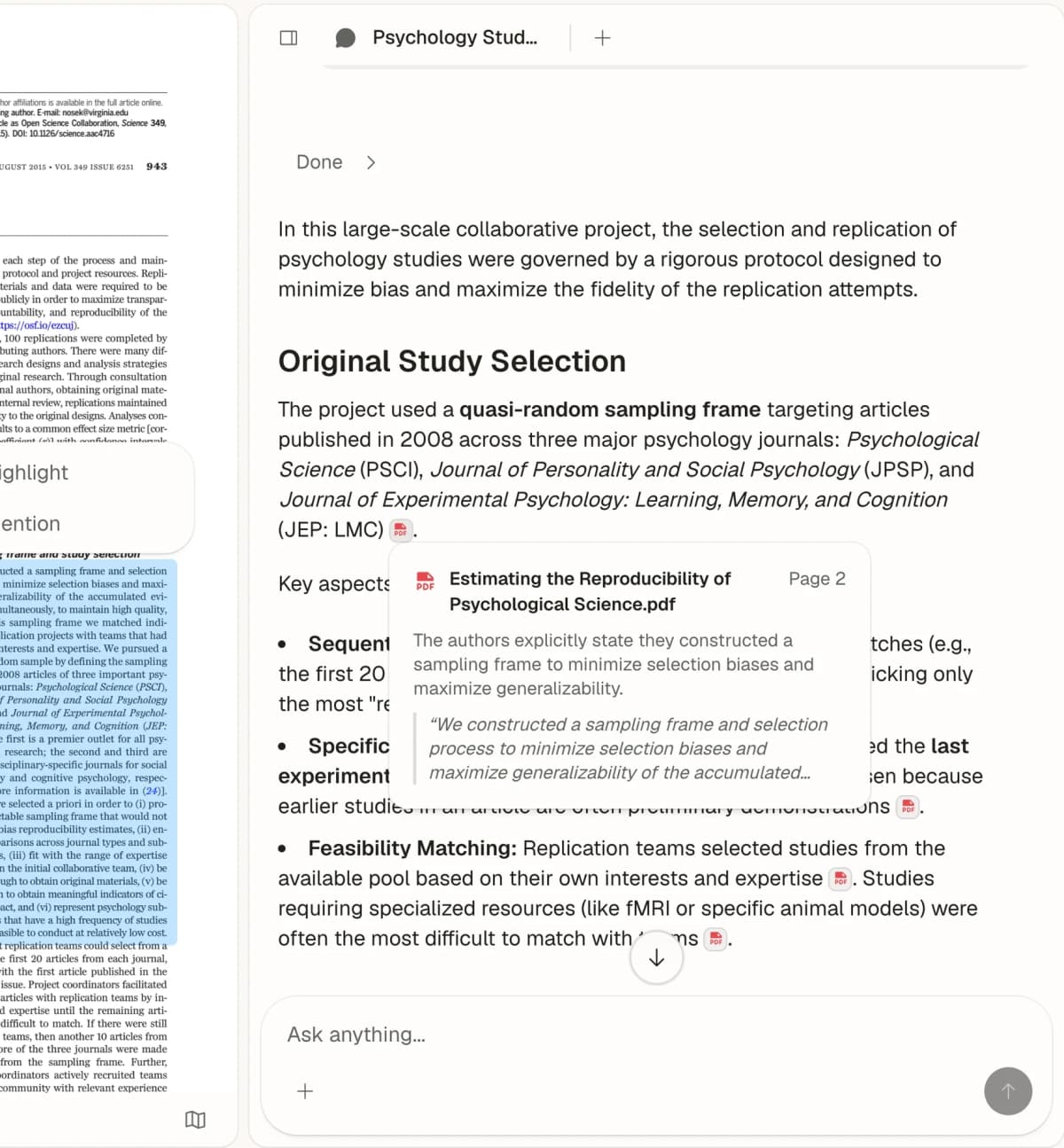
- Open the citation badge. A citation links to the source, but it does not prove the answer is complete.
- Read the marked text and nearby paragraph. Check key terms, exceptions, dates, names, and conditions.
- Decide whether the passage supports the answer. If support is weak, ask a narrower question.
- Save only checked findings with enough context for the next reviewer.
Frame the question
Use two rules for the prompt:
- Name the source and the exact feature you want to inspect.
- Ask about one item at a time, such as a duty, notice period, renewal term, date, party, exhibit, or exception.
A quick summary can help you get started. Keep a finding only when you can trace it to a passage and defend your reading of that text.
When to choose Atlas
Choose Atlas when you have the file and need an answer you can trace to a passage. Use other tools to draft, run eDiscovery, or redline a contract. Use counsel for legal advice.
Best legal document analysis AI tools
1. Atlas
Atlas fits source checks over files you control. Add the legal files, ask about one clause or date, and open the cited passage before you use the answer.
Because Atlas can answer across several imported files, you can use it to compare duties across files, check a clause, find dates or parties, sum up a term, or prepare a question for counsel.
Related guides cover the neighbouring jobs:
- Reading and questioning files: PDF chatbots, AI document summarizers and AI document readers.
- Comparing file versions: document comparison tools and AI document comparison.
- Checking sources: AI citation checkers.
Atlas does not give legal advice, redline deals, run eDiscovery, create privilege, or decide if a clause can be enforced. Ask the right legal reviewer when a finding matters.
2. Lexis+ Document Analysis
Lexis+ Document Analysis fits lawyers who want file review inside a legal research tool. LexisNexis markets it to case and deal lawyers.
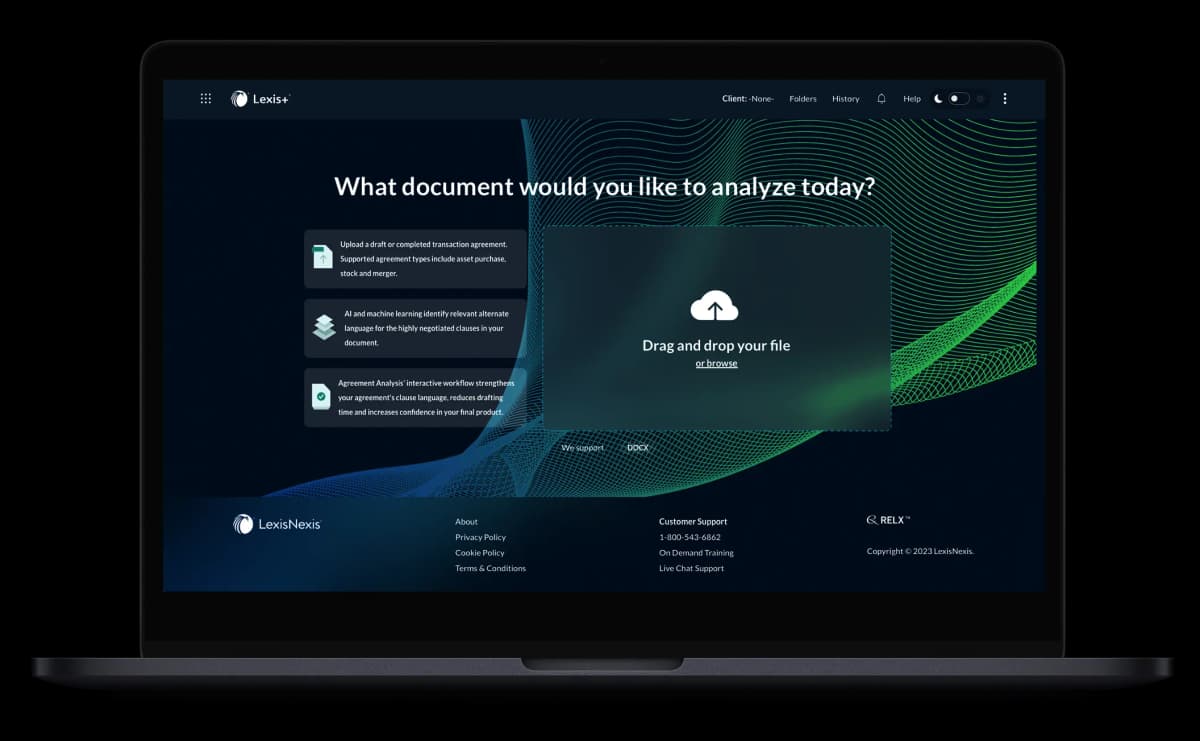
Its page says the AI uses similar files to offer legal insights and suggestions.
Use it when file review belongs close to legal research. It is not a consumer chat tool or a stand-in for a lawyer's judgment. Check the current product page for features, trials, links to other tools, and legal coverage.
3. LawDistrict AI Legal Document Assistant
LawDistrict offers self-serve file Q&A. Its page lists PDF and Word uploads, summaries, key facts, clause notes, and questions about the file. It also says the tool does not replace legal advice.
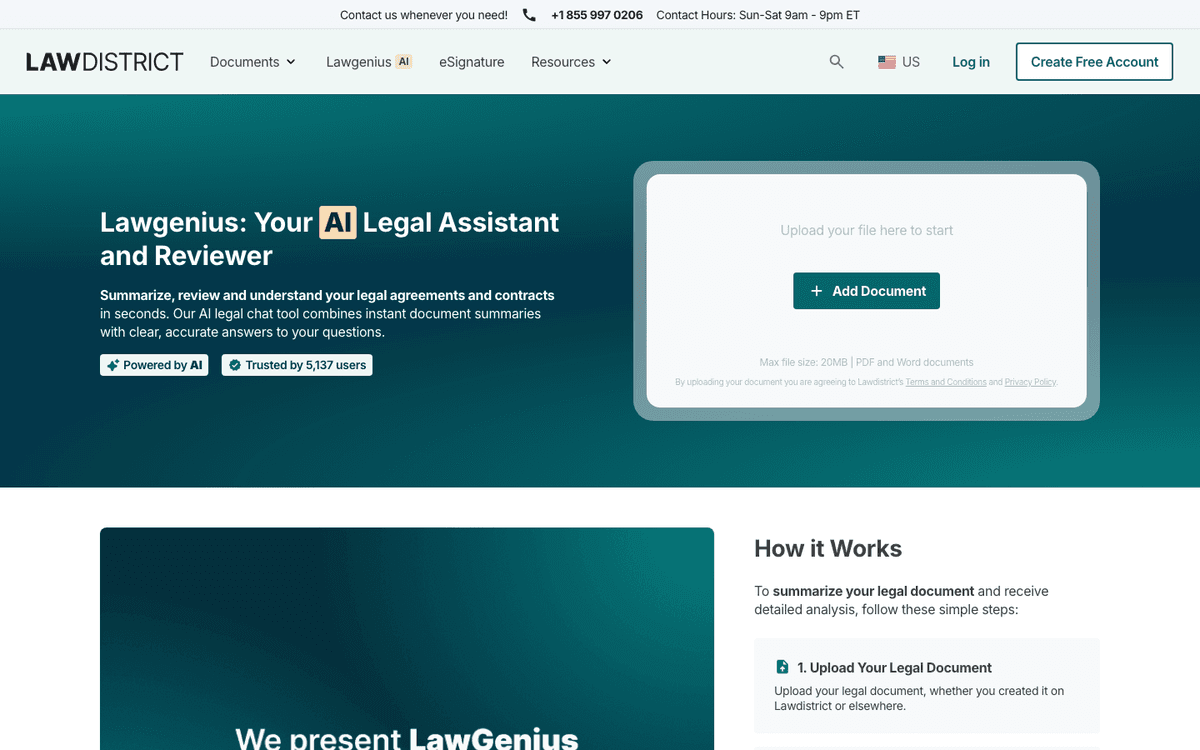
Use it to understand a file and plan what to ask next. Take questions about legal effect, rights, or risk to a lawyer.
4. LegalOn
LegalOn reviews contracts against playbooks. Its page lists risk flags, unusual terms, clause checks, and suggested edits. This is a different job from broad file Q&A.
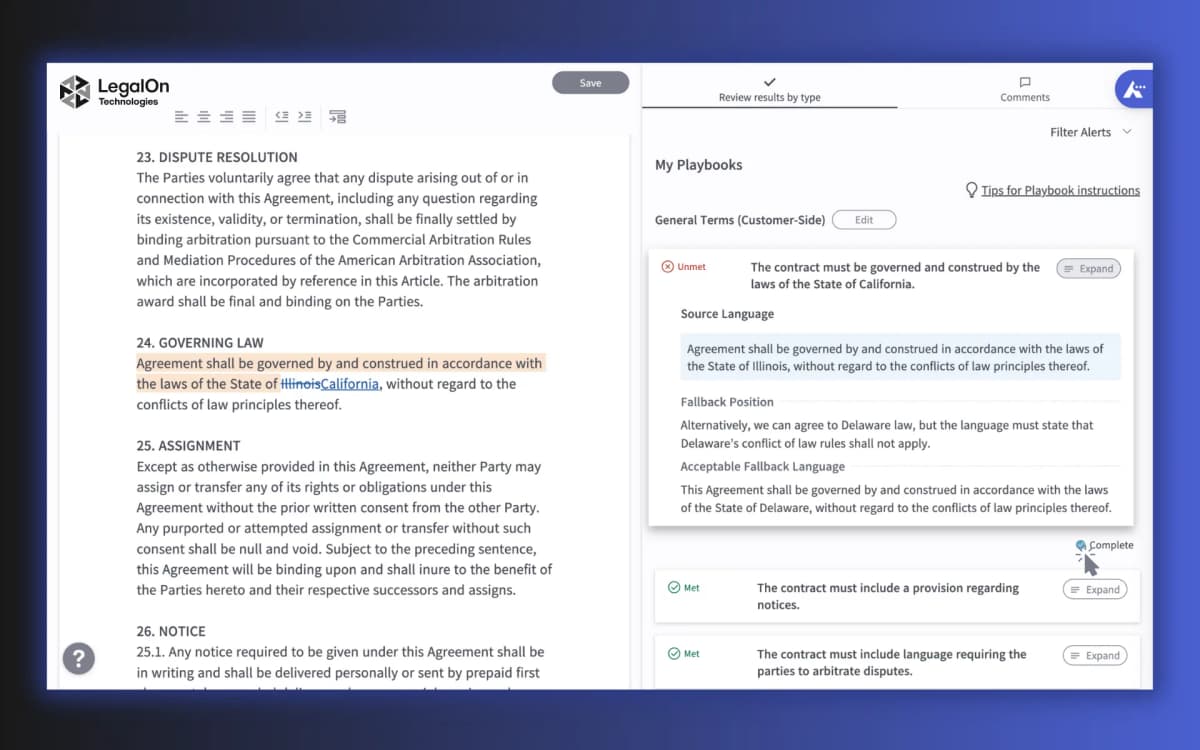
Choose it when an in-house team wants the same rules used for each contract. Check current claims about playbooks, setup, security, and results before you buy.
5. LegalFly Review
LegalFly Review is a contract tool. Its page lists clause extraction, risk summaries, playbook redlines, issue notes, an audit trail, and Word review.
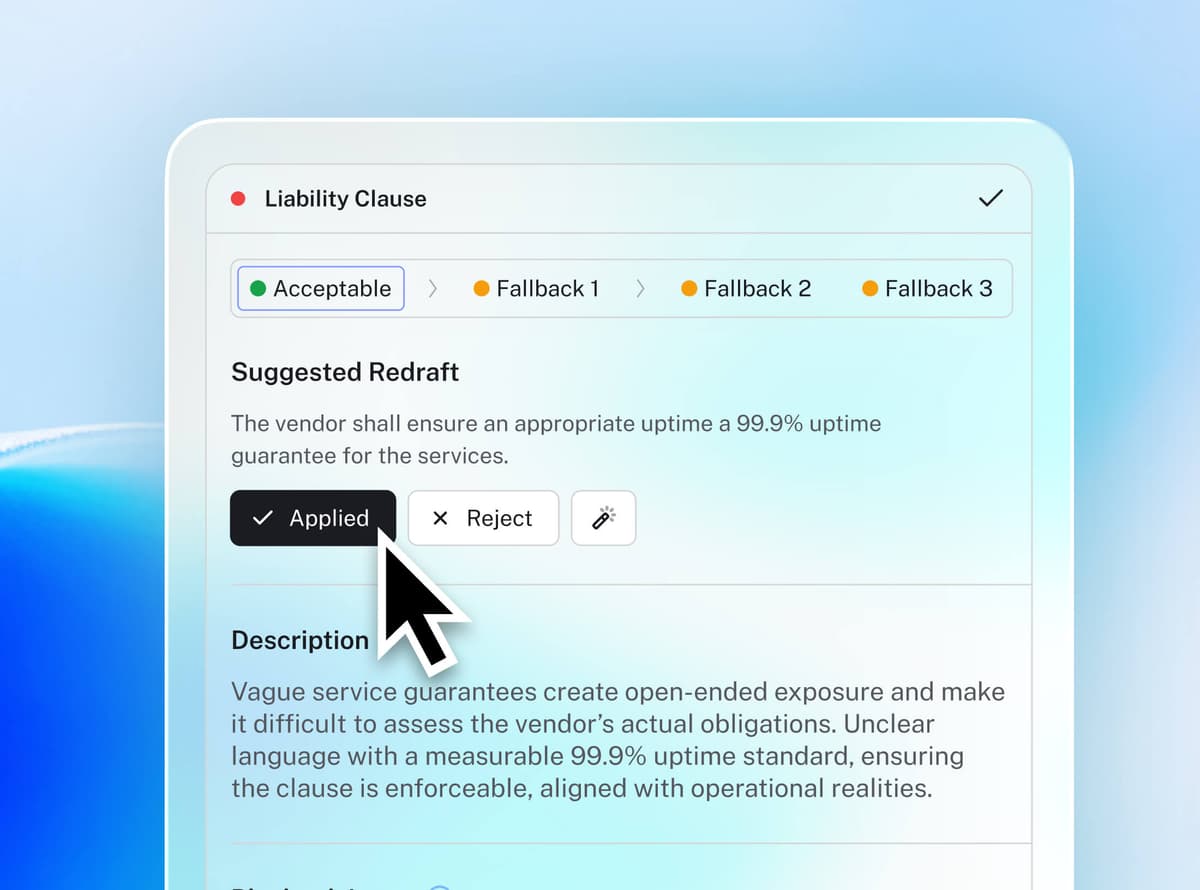
It fits teams that want the same review rules used across many contracts.
Judge it as a contract system with playbooks and redlines. Before you add private work, check its current legal coverage, file support, security, Word behavior, and audit trail.
6. Clio Duo
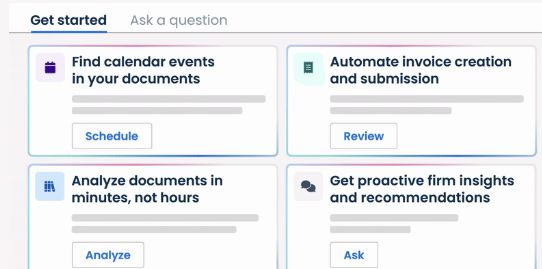
Clio Duo is most relevant when a firm already uses Clio. ABA and Clio guides place AI file review inside a process that still has human checks.
Judge Clio Duo as part of the full firm workflow. For Q&A over one file, use a narrower tool. For matter context and daily firm tasks, Clio may fit better.
Legal, privacy, and evidence boundaries to check
Legal AI risk usually appears in five places.
Legal advice and jurisdiction
- Legal advice: A tool can explain text, but a lawyer must apply the law to your facts.
- Governing law and facts: A clause may change meaning based on the law, dates, exhibits, and goals.
- Key terms and exceptions: The main limit may sit in a definition, schedule, carveout, or linked clause.
Evidence and extraction
- Citation strength: A citation may point to a related passage while the generated sentence overstates what the passage supports.
Scanned documents add another risk. OCR and extraction problems can break search, citations, summaries, and clause detection. If the source is image-only, unusually formatted, or protected, first confirm that the tool can read the text. For important findings, verify by phrase search and surrounding context rather than page number alone.
Confidentiality and upload review
Contracts, case files, client records, employee documents, and regulated data need a vendor-terms review before upload. Check security, privacy, and professional duties first.
Do not ask any tool to make the final legal call. Ask it to help you locate the relevant text and identify the issue.
Then preserve the source trail and prepare a better question for the person responsible for legal judgment.
If that question will become an objective office memo, use the legal research memo guide to organize the question, facts, authorities, and counterarguments for qualified review.
Which tool should you choose?
Choose Lexis+ Document Analysis when a lawyer needs legal document analysis tied to professional legal research. Choose LegalOn or LegalFly when an in-house team needs repeatable contract review against playbooks, risk flags, and redlines.
Choose LawDistrict when a self-serve user needs help summarizing or questioning a legal document before seeking advice. Choose Clio Duo when AI support should live inside a Clio practice workflow.
Choose Atlas when the most important requirement is cited evidence over legal documents you can inspect. The review path is source-first: add the source, ask a narrow question, open the citation, read the surrounding passage, reject weak support, and keep a verified finding.
For adjacent workflows, compare legal document AI tools, contract AI, contract AI software, AI document readers, and AI citation checkers.
Check legal documents with cited answers
Add legal documents, ask a focused question, and inspect the cited passage.